Best Design & Creative Tools for Non-Designers (2026)
A practical guide to design tools for non-designers in 2026—templates, drag-and-drop editors, and fast creative workflows for founders, marketers, and builders.
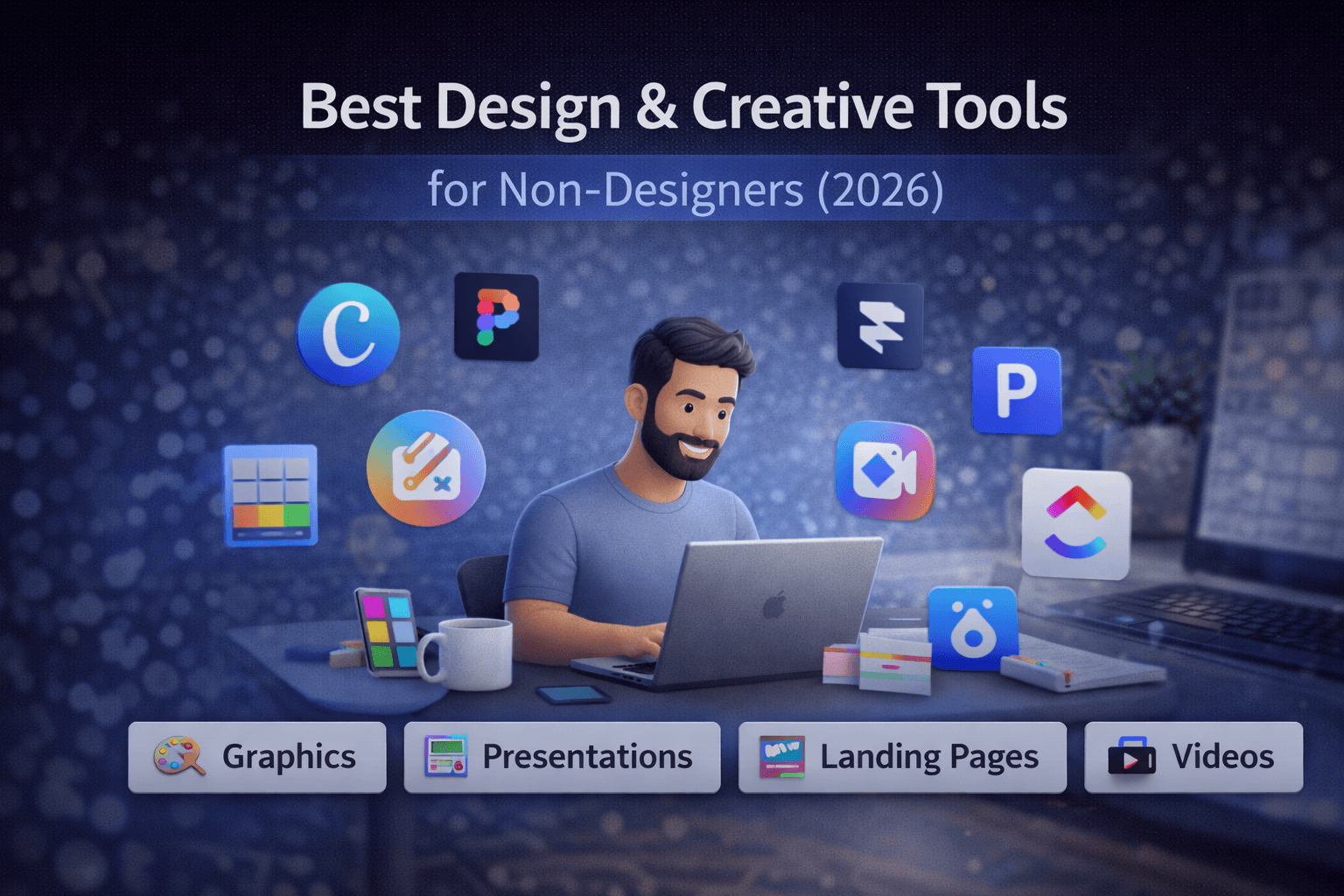
You don't need to be a designer to make professional-looking work anymore. The best design tools for non-designers in 2026 focus on templates, smart defaults, and fast results—not complex workflows or years of practice. These are design tools without experience requirements built for speed and clarity.
This guide covers the best creative tools for beginners, solo founders, marketers, developers, and content creators who need good design with no design skills required.
Design Without Being a Designer
Most people don't need Photoshop or Illustrator. Those tools are powerful, but they assume you're doing advanced image editing every day. For non-designers, the goal is different: make something that looks good quickly.
Why simple tools win in 2026:
- You get strong default layouts and typography
- Templates handle the heavy lifting
- Drag-and-drop is faster than layers and masks
- You can ship work without a steep learning curve
What Non-Designers Actually Need
Great design tools for non-designers share a few traits:
- Templates – Start with a layout that already looks good
- Drag & drop – Arrange elements without learning design software
- Good defaults – Fonts, spacing, and colors are pre-tuned
- Fast results – Get from blank page to finished asset quickly
- Low learning curve – You can be productive in one session
If a tool requires weeks of onboarding, it’s not built for beginners—it’s a professional design tool.
Best Tools for Non-Designers
These are the most practical tools for people who need beginner-friendly design tools without experience.
1. Canva
Best for: Social graphics, simple marketing assets, one-off designs
Not ideal for: Complex product UI or custom layouts
Canva is the best overall design tool for non-designers. It has templates for almost everything: Instagram posts, resumes, banners, flyers, thumbnails, and presentations.
Pros:
- Huge template library
- Very easy to learn
- Drag-and-drop editor
- Built-in stock photos and icons
- Great for social and marketing
Cons:
- Limited for advanced layout control
- Designs can look "templated" if overused
- Not ideal for UI design workflows
When to choose Canva: You want fast, good-looking assets with minimal effort.
Canva works best for speed, not originality. If brand differentiation matters, you’ll eventually hit its limits.
2. Figma
Best for: UI mockups, product screenshots, simple layouts
Not ideal for: People who only need templates
Figma is the standard for UI and product design. It's powerful but still approachable for non-designers who need to create clean layouts, product screenshots, or basic wireframes. You don’t need to design from scratch—community templates and UI kits do most of the work.
Pros:
- Precise layout control
- Great for UI and app mockups
- Works in the browser
- Strong community templates
- Easy collaboration
Cons:
- Steeper learning curve than Canva
- Too much for simple marketing assets
- Can feel technical for beginners
When to choose Figma: You need product UI mockups or want more layout control than Canva provides.
3. Framer
Best for: Landing pages without code
Not ideal for: Detailed design systems or team design workflows
Framer lets you build modern landing pages visually, with responsive layouts and animations, without writing code. It's especially useful for founders shipping pages fast.
Pros:
- Launch landing pages quickly
- Responsive by default
- Modern templates
- Great for product launches
- Hosting included
Cons:
- Not a general design tool
- Less flexible than full web builders
- Can be overkill for simple pages
When to choose Framer: You need a landing page that looks professional without a dev build cycle.
4. Pitch
Best for: Presentations that look polished
Not ideal for: Complex data-heavy slide decks
Pitch is a modern presentation tool that makes slides look clean by default. It’s great for founders and marketers who want decks that don't feel like PowerPoint.
Pros:
- Modern templates and typography
- Collaborative editing
- Fast to build a clean deck
- Nice animations and transitions
Cons:
- Fewer advanced features than PowerPoint
- Not as strong for data-heavy charts
- Smaller template ecosystem
When to choose Pitch: You want presentations that look great without heavy design work.
5. Loom / Screen Studio
Best for: Visual communication, quick demos, async updates
Not ideal for: Edited marketing videos
Sometimes the best "design" is a video walkthrough instead of a slide. Loom and Screen Studio make it easy to record polished screen videos.
Pros:
- Faster than making slides
- Clear communication without design skills
- Great for product demos
- Easy sharing
Cons:
- Not a design tool for graphics
- Requires comfort on camera (or voice)
- Limited editing for long videos
When to choose Loom or Screen Studio: You need to explain, demo, or teach without building a visual asset.
Best Tool by Use Case (Quick Picks)
| Use Case | Best Tool | Why |
|---|---|---|
| Social media graphics | Canva | Templates + speed |
| Landing pages | Framer | No-code publishing |
| Presentations | Pitch | Clean, modern decks |
| Product mockups | Figma | UI layout control |
| Video updates | Loom / Screen Studio | Fast visual communication |
Common Mistakes Non-Designers Make
1. Over-designing
More elements rarely make a design better. Simple layouts with strong spacing usually look more professional.
2. Using too many fonts
Stick to one or two fonts max. Mixing too many styles makes designs feel chaotic.
3. Copying "Dribbble" instead of real sites
Design showcases look great, but they aren't built for clarity. Copy real SaaS pages, not concept shots.
4. Choosing complex tools "just in case"
If you rarely need advanced features, don't pay the complexity tax.
Simple Design Stack Examples
Solo founder stack:
Canva + Framer + Loom
Fast graphics, fast landing pages, fast demos.
Marketer stack:
Canva + Pitch + Loom
Social content, clean decks, and quick updates.
Developer stack:
Figma + Framer + Screen Studio
UI mockups, landing pages, and product walkthroughs.
Final Recommendation
Start with one tool and only add more when something breaks.
- If you need graphics fast: Canva
- If you need landing pages: Framer
- If you need UI mockups: Figma
- If you need presentations: Pitch
- If you need async demos: Loom or Screen Studio
Design is about clarity, not creativity. The right tools make good-looking work achievable even if you have no design skills or prior experience.
If you’re just starting, pick one tool and ignore the rest. Complexity is the fastest way to slow down creative work.
Explore more: Browse our Market and Sell category for additional guides and comparisons.